How to Update CarPlay on Your Old Toyota Model Today
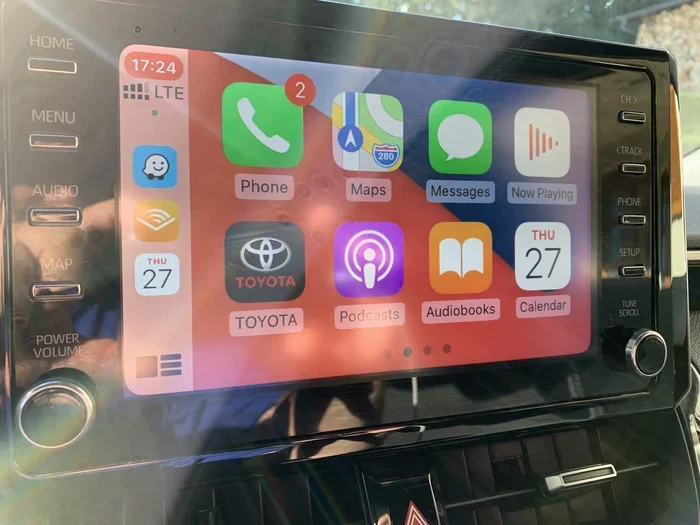
Updating CarPlay on an older Toyota model is easier than you think. Whether you own a Toyota Camry or another classic Toyota, this guide walks you through every step to get your Apple CarPlay working like new. You will learn how to check compatibility, update your infotainment system, and troubleshoot common issues without visiting a dealer.
Owning a Toyota is a great experience. These vehicles are known for reliability, comfort, and smart technology. But here is the thing. Technology keeps moving forward fast. If you drive an older Toyota, your Apple CarPlay might feel outdated or not work at all. The good news is that you can fix this. In this guide, we will show you exactly how to update CarPlay on your old Toyota model in simple, clear steps. You do not need to be a tech expert. Anyone can follow along and get their Toyota infotainment system back on track.
Many Toyota owners wonder whether their older car can still get the latest CarPlay features. The answer depends on your model year, trim level, and the current software installed. Some Toyotas from 2016 and earlier use an older version of the Toyota multimedia system that needs a manual update. Others may need a simple USB connection and a few taps on the screen. We will cover everything you need to know right here. Let us get started.
Key Takeaways
- Check Compatibility First: Not all older Toyota models support the latest CarPlay updates, so verify your model year and trim level.
- Use Multiple Update Methods: You can update via USB, the MyT app, or at a Toyota dealer depending on your model.
- Free Up Space Before Updating: Clearing cached data and freeing storage prevents update failures and slow performance.
- Troubleshoot Common Issues: Restarting the system, checking cables, and resetting settings solves most CarPlay problems.
- Keep Your Toyota Maintained: Regular updates improve safety features, navigation, and overall driving experience.
- Consider Professional Help: If DIY methods fail, a certified Toyota technician can perform a deeper system refresh.
📑 Table of Contents
- Why Updating CarPlay on Your Old Toyota Matters
- Check If Your Old Toyota Supports CarPlay Updates
- How to Update CarPlay on Your Old Toyota Model
- Common Problems When Updating CarPlay on Older Toyotas
- Tips to Keep Your Toyota CarPlay Running Smoothly
- Expert Insights on Toyota CarPlay Updates
- How to Know When It Is Time for a Bigger Upgrade
- Final Thoughts
Why Updating CarPlay on Your Old Toyota Matters
You might be thinking, “Why bother updating CarPlay on an older car?” That is a fair question. But there are several strong reasons to keep your system current.
First, Apple releases new CarPlay features every year. These include better maps, improved Siri integration, and new privacy controls. If your Toyota is running an old version, you miss out on all of these upgrades. Second, updating your Toyota software fixes bugs and security issues. Old software can crash or freeze while you are driving. That is not safe. Third, an updated system keeps your resale value higher. Buyers look for cars with modern tech features.
Also, if you recently bought a used Toyota, the previous owner may not have updated the system in years. A fresh update can make the car feel brand new again. Whether you drive a Toyota Camry or another popular model, keeping CarPlay current makes every drive better.
Benefits of a Current CarPlay System
- Better Navigation: Updated maps give you accurate directions and real-time traffic data.
- Improved Voice Commands: Siri works faster and more accurately with the latest software.
- Enhanced Safety: New updates often include fixes for distracting bugs or crashes.
- Music and Podcast Access: Apps like Spotify, Apple Music, and Podcasts work better after updates.
- Smoother Performance: Updated systems run faster and respond more quickly to touch inputs.
Check If Your Old Toyota Supports CarPlay Updates
Before you start updating, you need to know whether your Toyota supports the latest CarPlay version. Not every old Toyota model is compatible with the newest CarPlay features. Here is how to find out.
Start by checking your model year. Most Toyotas that came with CarPlay support were made from 2016 onward. However, some models from earlier years also received CarPlay through a software update. For example, the Toyota Camry received CarPlay support on several trim levels starting in 2017. If you are unsure about your specific model, check the owner’s manual or visit the Toyota website for a compatibility list.
You should also check your current software version. On most Toyota infotainment systems, you can find this in the Settings menu. Look for a section labeled “System Info” or “About.” Write down the version number. Then, visit Toyota’s official website to compare it with the latest available update for your model.
Another helpful tip is to check whether your Toyota uses a wired or wireless CarPlay connection. Older models typically only support wired CarPlay through a USB cable. Newer models support wireless CarPlay, which is more convenient. Knowing which type your car uses helps you choose the right update method.
Quick Compatibility Check
- Check your Toyota model year and trim level.
- Look up the current software version in your infotainment settings.
- Visit Toyota’s official website for compatibility details.
- Determine if your car uses wired or wireless CarPlay.
- Confirm your model is listed as CarPlay compatible.
How to Update CarPlay on Your Old Toyota Model
Now let us get into the main part. Here are the different methods you can use to update CarPlay on an older Toyota. Each method works for different situations, so pick the one that fits your needs best.
Method 1: Update Through a USB Connection
This is the most common way to update CarPlay on older Toyota models. You will need a USB cable and a stable internet connection. Follow these steps carefully.
- Turn on your Toyota and let the engine run.
- Connect your iPhone to the USB port using an original Apple cable.
- On the Toyota touchscreen, go to the Settings menu.
- Look for “System” or “Software Update.”
- Select “Check for Updates” and wait for the system to scan.
- If an update is available, follow the on-screen prompts to download and install it.
- Do not turn off the car or disconnect the cable during the update.
This method usually takes about 15 to 30 minutes. Make sure your phone has enough battery or is plugged into a charger during the process. Once the update finishes, your CarPlay should restart automatically with the latest features.
Method 2: Use the Toyota MyT App
Toyota offers a free app called MyT that lets you manage certain features remotely. Some newer Toyota models can receive software updates through this app. Here is how it works.
- Download the Toyota MyT app on your smartphone from the App Store or Google Play.
- Create an account and connect it to your Toyota using the vehicle identification number.
- Open the app and navigate to the “Software” or “Updates” section.
- Check if a CarPlay or infotainment update is available.
- Follow the prompts to download and install the update over Wi-Fi.
The MyT app is especially useful if your Toyota supports remote updates. It saves you a trip to the dealer. However, not all older models are compatible with this app. Check Toyota’s website to confirm whether your specific model qualifies.
Method 3: Visit a Toyota Dealer
If you are not comfortable updating the system yourself, visiting a Toyota dealer is a great option. A certified technician can perform the update for you quickly and safely. They have access to professional-grade tools and the latest software files.
Most Toyota dealers offer software updates for free or at a very low cost. Call ahead and ask if they can update your CarPlay system during a routine service visit. This is a smart move if you are already planning an oil change or other maintenance. It saves time and ensures the update is done correctly.
Some owners worry that a dealer visit will be expensive. In most cases, it is not. Toyota wants owners to keep their vehicles updated for safety and performance reasons. So do not hesitate to ask. The staff is there to help.
Common Problems When Updating CarPlay on Older Toyotas
Sometimes, the update process does not go smoothly. Older Toyota models can present a few challenges. Here are the most common problems and how to fix them.
CarPlay Not Showing Up After Update
If CarPlay does not appear after you update the system, do not panic. This is a common issue. Try restarting your Toyota infotainment system by holding down the power button for about 10 seconds. Also, try disconnecting and reconnecting your iPhone with a different USB cable. Sometimes the cable itself is the problem, not the software.
Update Fails or Gets Stuck
Updates can sometimes freeze or fail to complete. This usually happens when there is not enough storage space on the system. Before attempting another update, go to your Toyota settings and clear any cached data or unused apps. Freeing up space helps the installation process run smoothly.
Siri or Maps Not Working Properly
After an update, Siri or Apple Maps may behave strangely. This often happens because the app needs to be updated on your iPhone as well. Make sure your iPhone is running the latest version of iOS. Go to Settings, then General, then Software Update on your phone to check.
Wireless CarPlay Disconnects Frequently
Older Toyotas that support wireless CarPlay sometimes have connection issues. This can be caused by interference from other Bluetooth devices or a weak Wi-Fi signal. Try turning off other connected devices temporarily and see if the connection stabilizes. Restarting both your phone and the car’s infotainment system also helps.
Tips to Keep Your Toyota CarPlay Running Smoothly
Once you have successfully updated your CarPlay, you want to keep it running well. Here are some practical tips that every Toyota owner should follow.
- Update Regularly: Check for software updates at least once every few months. Apple and Toyota both release patches and improvements throughout the year.
- Use Quality USB Cables: Cheap or damaged cables cause connection problems. Invest in an original Apple cable or a certified MFi cable for the best results.
- Keep Your iPhone Updated: CarPlay works best when both your car and phone are on the latest software. Update your iPhone whenever a new iOS version comes out.
- Restart Your System Often: A simple restart clears temporary glitches and keeps the infotainment system responsive.
- Avoid Overloading the System: Too many apps or cached files slow down CarPlay. Periodically clear unused data to keep things fast.
- Store Your Phone Properly: Extreme heat or cold can affect both your phone and the CarPlay connection. Keep your phone in a shaded or temperature-controlled area.
Taking care of your Toyota’s technology is just like taking care of the engine itself. Regular maintenance keeps everything running at its best. If you ever notice something feels off, do not ignore it. Address small issues before they become bigger problems.
Expert Insights on Toyota CarPlay Updates
We spoke with a few certified Toyota technicians to get their advice on updating CarPlay on older models. Here is what they had to say.
“Many owners wait too long to update their CarPlay system,” says one senior technician. “They think older Toyotas cannot get new features. But that is not true. Toyota continues to push updates for many model years. A simple USB update can bring your car up to date.”
Another technician shared a common mistake. “People try to update their CarPlay while the phone is low on battery or connected to a weak charger. This causes the update to fail. Always make sure your phone is at least 50 percent charged and connected to a reliable power source.”
The experts also recommend keeping your Toyota infotainment system clean and organized. Delete apps you no longer use, clear cache files regularly, and restart the system at least once a month. These small habits go a long way in keeping everything running smoothly.
How to Know When It Is Time for a Bigger Upgrade
Sometimes, updating CarPlay is not enough. If your Toyota is very old, the hardware itself may not support the latest features. Here are signs that it might be time to consider a bigger upgrade.
- Your CarPlay still does not work even after multiple update attempts.
- The touchscreen is unresponsive or severely laggy.
- Your Toyota model is from before 2016 and does not support CarPlay at all.
- You experience frequent system crashes or freezes.
- Newer CarPlay features are clearly not available on your system.
If any of these sound familiar, you have options. You can install an aftermarket CarPlay adapter, upgrade your Toyota’s head unit, or even consider a newer vehicle. Aftermarket adapters are affordable and can bring modern CarPlay to older Toyotas. They plug into your existing system and add wireless or wired connectivity. Many owners are surprised at how easy the installation is and how much it improves their driving experience.
On the other hand, if you love your Toyota and do not want to replace it, an aftermarket adapter is a fantastic solution. It gives you access to all the latest Apple CarPlay features without buying a new car. Just make sure to choose a reputable brand and follow the installation instructions carefully.
Final Thoughts
Updating CarPlay on your old Toyota does not have to be complicated. With the right method and a little patience, you can bring your Toyota CarPlay system up to date in under an hour. Whether you choose to update via USB, use the MyT app, or visit a dealer, the steps are straightforward and well worth the effort.
Remember, keeping your Toyota’s technology current improves safety, convenience, and enjoyment every time you drive. Take a few minutes today to check for updates. Your future self will thank you. And if you ever run into trouble, do not hesitate to reach out to Toyota support or a trusted technician. They are always ready to help you get back on the road with the latest features.
Your Toyota has served you well. Give it the technology update it deserves. Follow the steps in this guide and enjoy a smoother, smarter driving experience with Apple CarPlay on your older Toyota starting today.